What you need
- The district, block and mouza of the land. The JL number on a deed or porcha identifies the mouza.
- The LR khatian number or the LR plot (dag) number.
- A phone or computer with internet. A Banglarbhumi account is needed only if the search asks you to log in.
Steps
Step 1 Open Know Your Property
Go to Know Your Property. The page has two numbered parts: Select location and Enter record details. Every label is shown in English and Bengali.
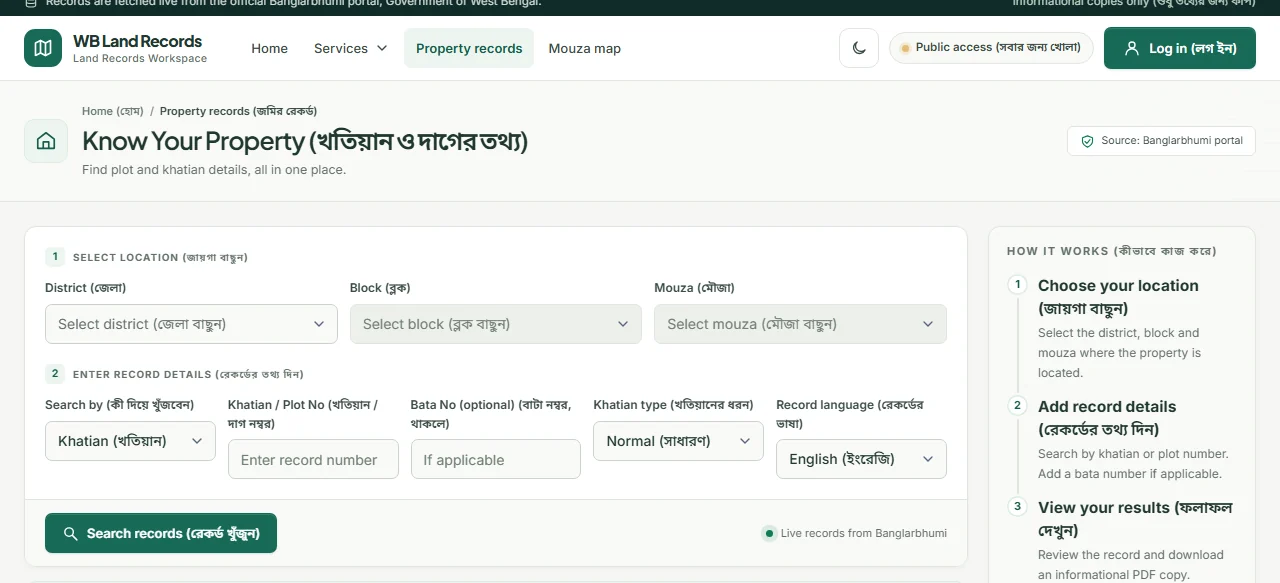
Know Your Property tool on WB Land Records showing the district, block and mouza fields Step 2 Choose the district
Click the District box. A search box opens: type the first letters of the district, for example “purba”, and click the district in the list. You can also scroll the full list.
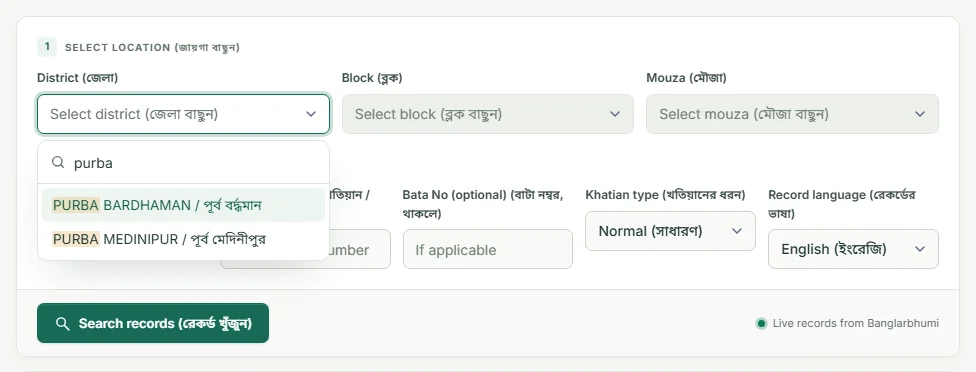
District list filtered by typing purba, showing Purba Bardhaman and Purba Medinipur Step 3 Choose the block and the mouza
Pick the Block the same way, then the Mouza. Each mouza is listed with its JL number first, such as “002 · Harispur”, so you can type either the name or the JL number. If two mouzas have the same name, go by the JL number.
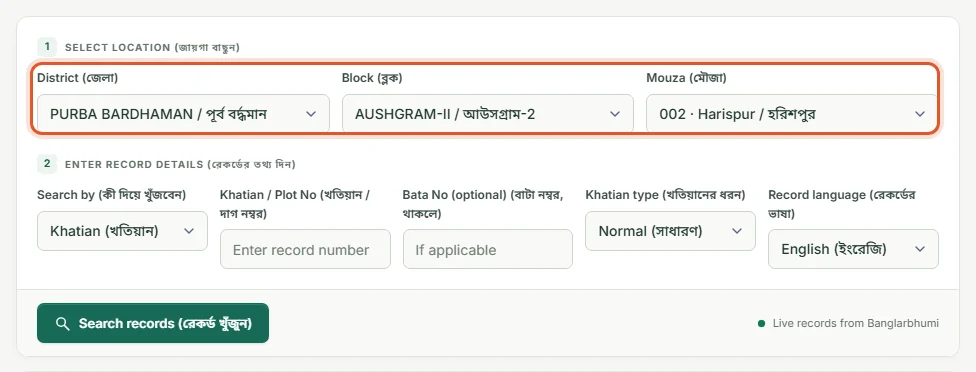
District, block and mouza selected: Purba Bardhaman, Aushgram-II, 002 Harispur Step 4 Enter the khatian or plot number
Under Search by, choose Khatian or Plot and type the number. If the number has a second part after a slash, such as 289/1, put that part in Bata No. Leave Khatian type as Normal unless the land is leasehold, and choose English or Bengali as the Record language.
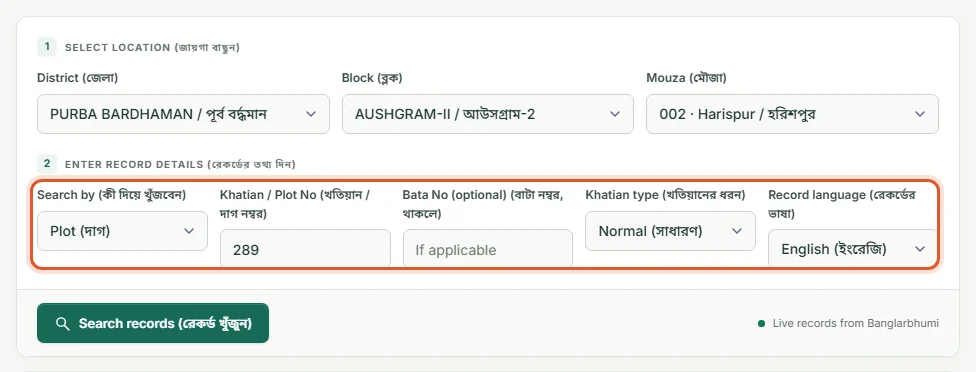
Search by Plot selected and plot number 289 entered in the record details Step 5 Click Search records
Click the green Search records button. The record is fetched live from the Banglarbhumi portal, which usually takes a few seconds.
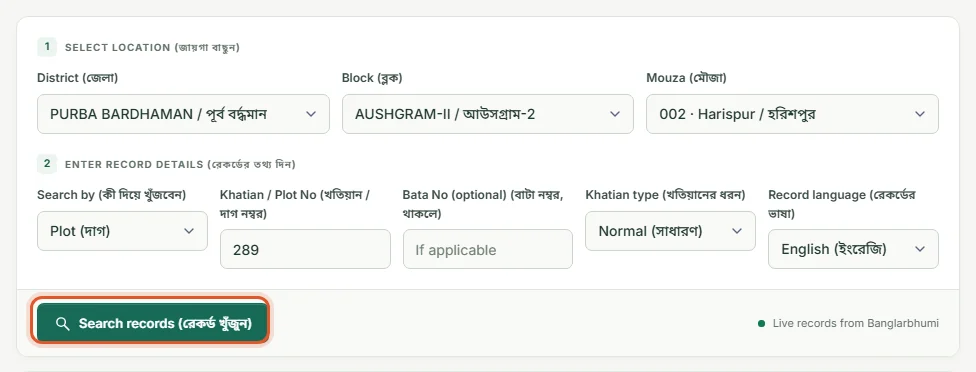
Search records button highlighted below the filled form Step 6 Confirm you are a person, or log in if asked
On your first search of a visit, a small box appears at the bottom right. Tick Verify you are human and the search continues by itself. If a login window opens instead, sign in with your own Banglarbhumi user ID, password, captcha and the OTP sent to your mobile.
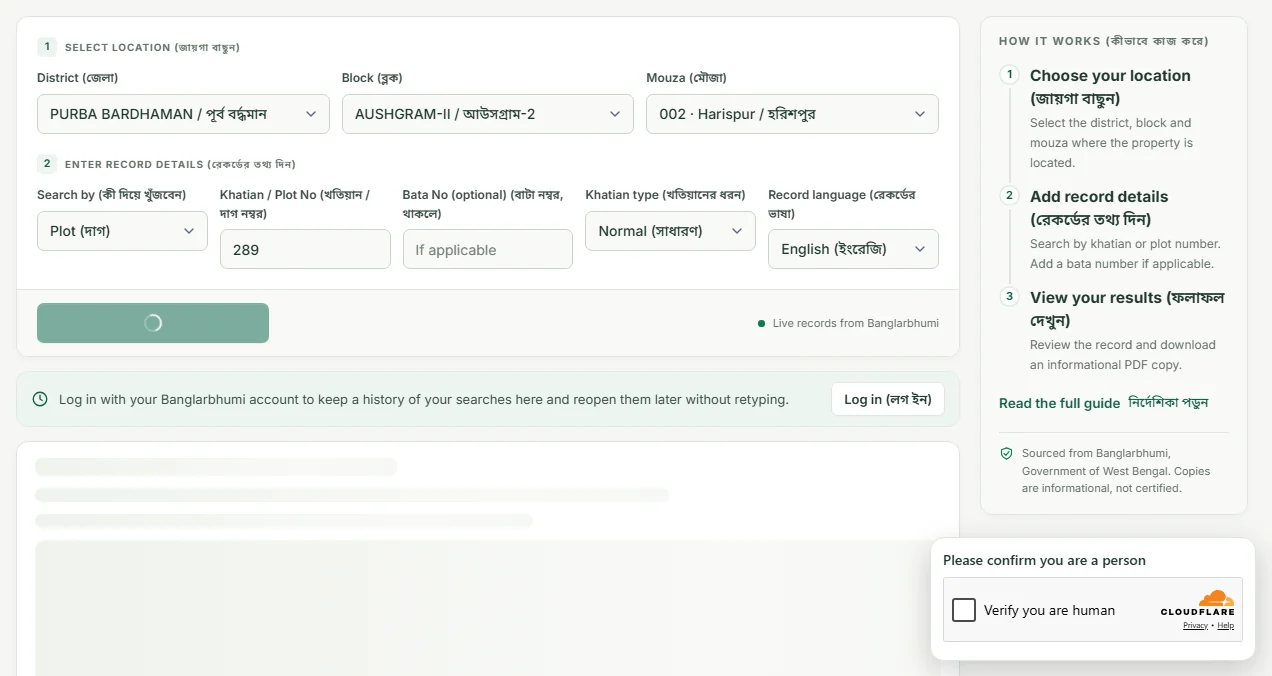
Verify you are human box shown while the search is loading Step 7 Read the record
The record appears below the form. A plot search shows the land class and total area first, then each khatian that holds a share of the plot with the owner's name, share and area. A khatian search shows the owner and every plot in that khatian. The screenshot shows a sample record with invented names.
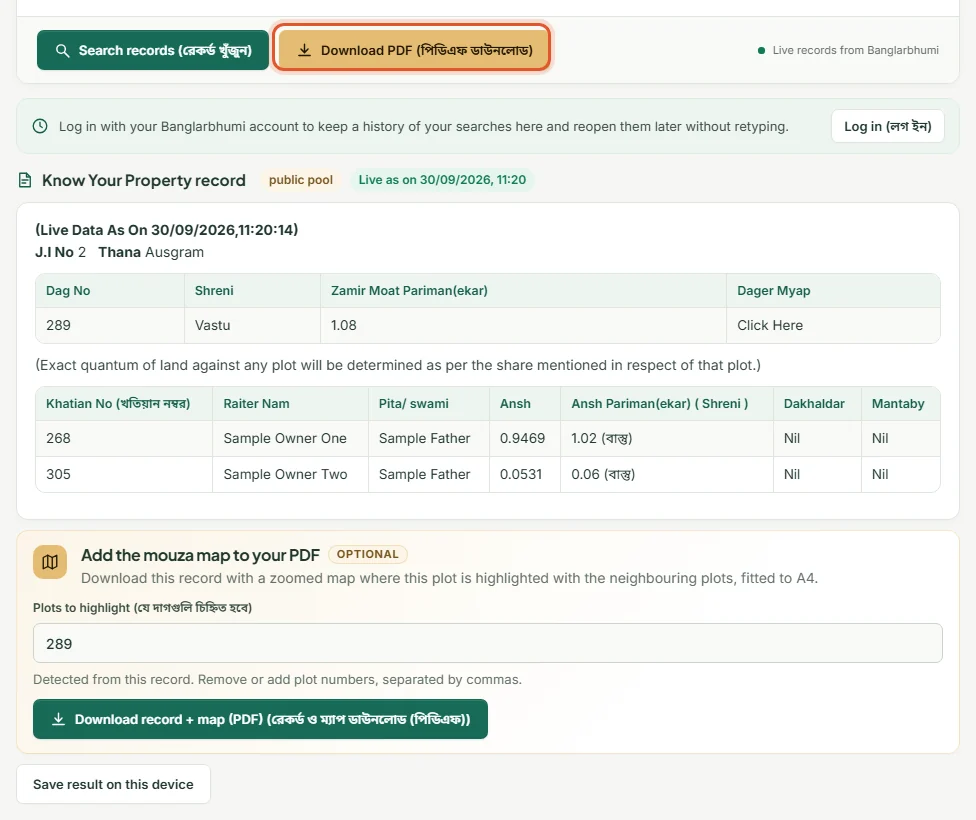
Sample plot record with khatian numbers, shares and area below the search form Step 8 Download the record as a PDF (without map)
Click Download PDF next to the Search button. You get a one-page A4 PDF with the district, block and mouza at the top, the record exactly as shown on screen, the date and time of the live data, and a note that it is an informational copy. Names are blurred in this picture.
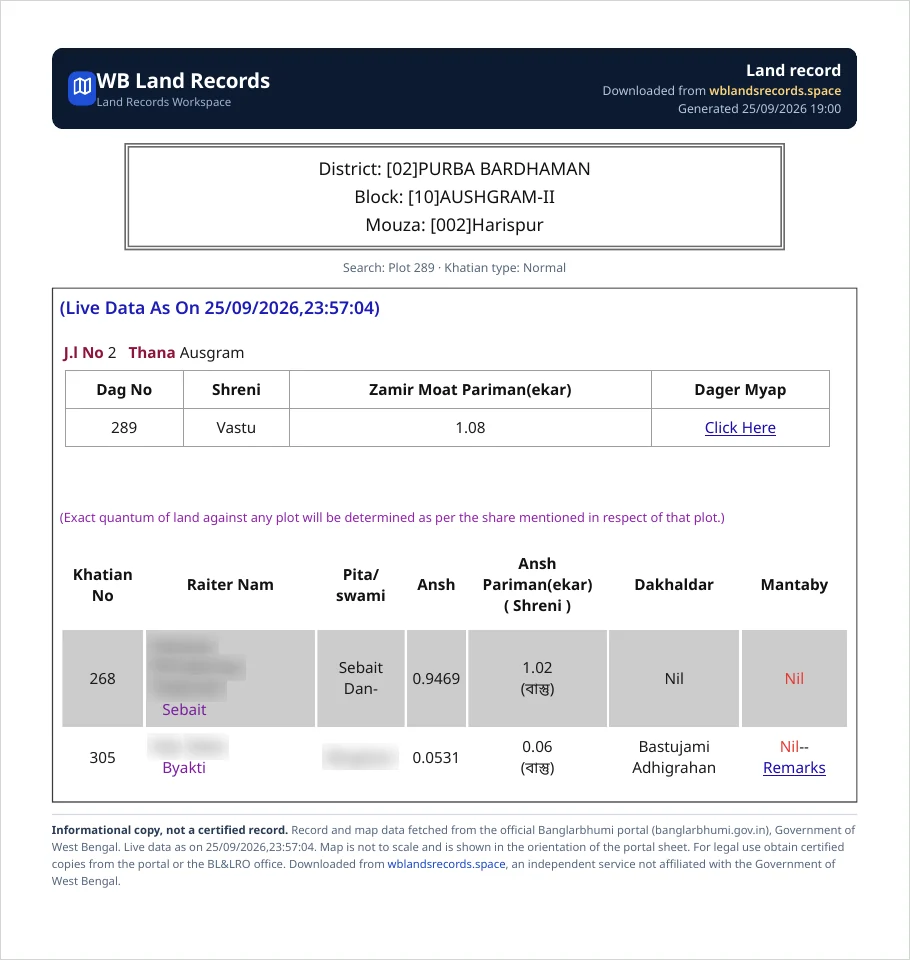
Downloaded land record PDF without map: plot 289 of Harispur mouza with khatian table Step 9 Add the mouza map to the PDF
To get the map as well, use the Add the mouza map to your PDF box under the record. The plot you searched is already filled in; add more plot numbers separated by commas if you want them highlighted too. Then click Download record + map (PDF).
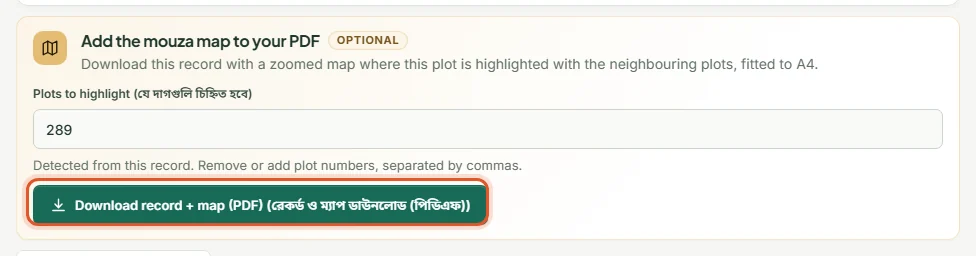
Add the mouza map to your PDF box with plot 289 filled in and the Download record + map button highlighted Step 10 Open the PDF with the map
This PDF has the record on the first page and a zoomed mouza map on the next, with your plot in yellow, the neighbouring plot numbers around it, and a small picture showing where this view sits on the whole sheet. The map is for reference and is not to scale. Names are blurred in this picture.
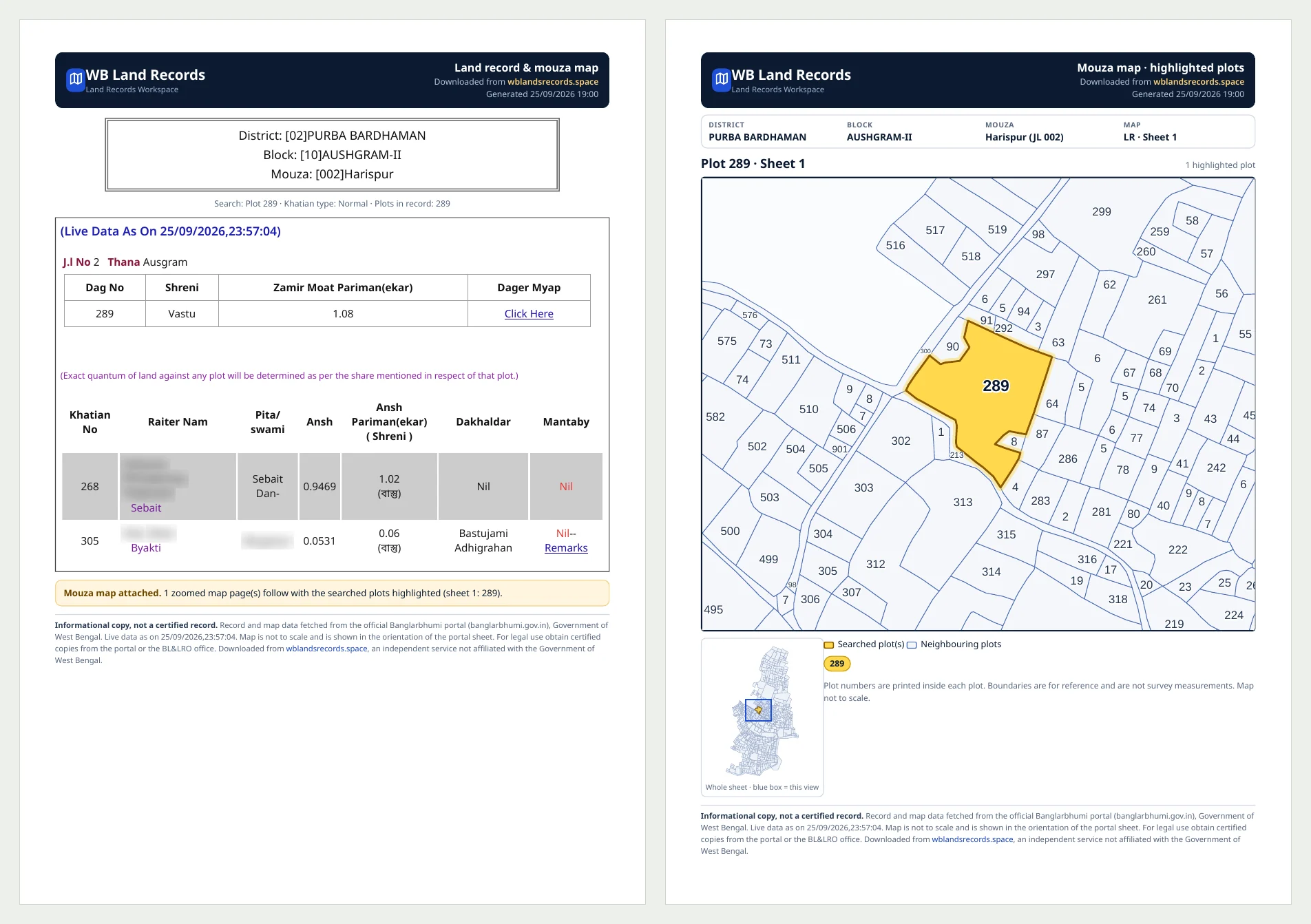
Downloaded land record PDF with mouza map: record page and map page with plot 289 highlighted in yellow
After you get the result
- The copy is for information only. For a certified copy, apply on the official portal or at the BL&LRO office.
- To see where the plot lies, open the mouza map for the same mouza.
- If the owner shown is not who you expected, check the mutation status of the plot.
Open the tool Read the background guide
Common questions
The search says no record found. What should I check?
Check the mouza and its JL number first; most failed searches are in the wrong mouza. Then check that you chose Plot or Khatian correctly, and that an old RS number has been converted to its LR number.
Do I have to log in to search?
Not always. Some searches run without a login after the human check. When a login is needed, the login window opens and you sign in with your own Banglarbhumi account.
Can I do this on a mobile phone?
Yes. The steps are the same; the fields are stacked one below the other and the lists open as a full-width sheet.